
How to Increase The Privacy Protection in Mozilla Firefox
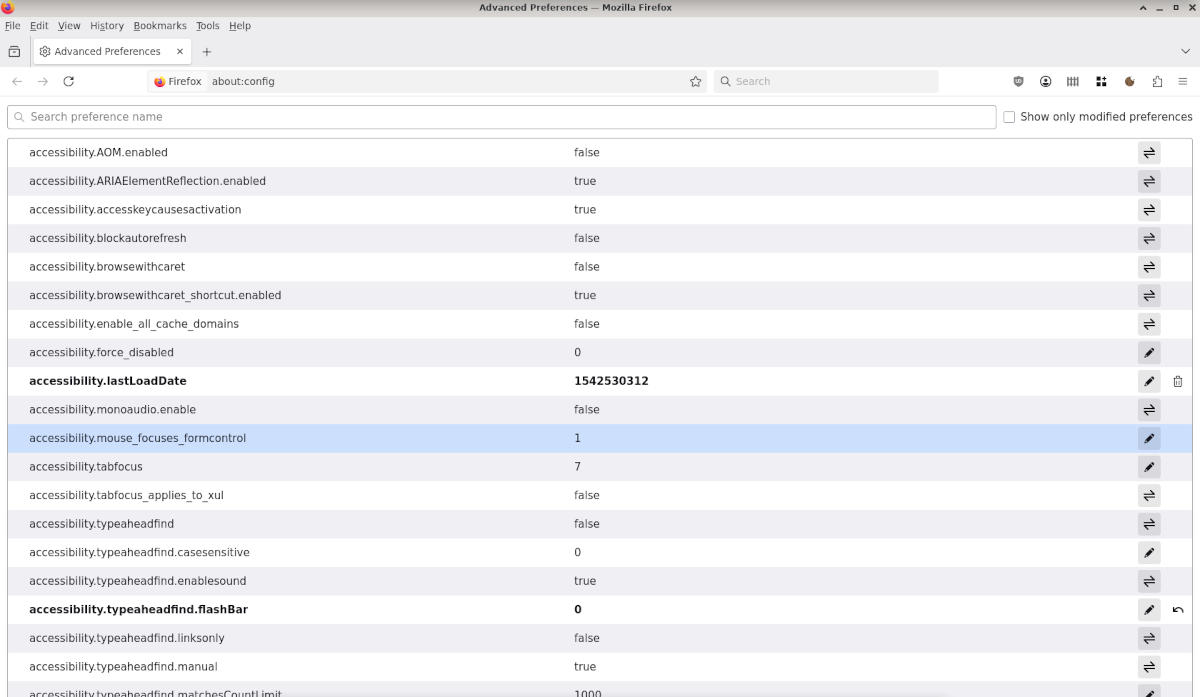
When surfing the Web I would like my browser to reveal as little as possible about my configuration and my interests. So here is how I change the configuration of the Mozilla Firefox ESR browser each time I install Debian Linux.
- Open the preferences page (
about:preferences) and disable all options under the heading Firefox Data Collection and Use:
- Send technical and interaction data to Mozilla
- Send daily usage ping to Mozilla
- Automatically send crash reports
Disclaimer: Modifying advanced settings (about:config) can affect browser stability. Proceed with caution and consider backing up your profile first.
- Open the configuration page (
about:config) and modify the following parameters:
    toolkit.telemetry.archive.enabled = false
    toolkit.telemetry.enabled = false
    toolkit.telemetry.unified = false
    datareporting.healthreport.uploadEnabled = false
    datareporting.policy.dataSubmissionEnabled = false
    browser.newtabpage.activity-stream.showSponsored = false
    browser.newtabpage.activity-stream.showSponsoredTopSites = false
    browser.newtabpage.activity-stream.feeds.topsites = false
    browser.urlbar.suggest.quicksuggest.sponsored = false
    network.dns.disablePrefetch = true
    network.prefetch-next = false
- Clear the values of the following parameters:
    toolkit.telemetry.server
    toolkit.telemetry.infoURL
- Install the following add-on:
- uBlock Origin